
The purpose
Running a local vision-capable LLM (Chat AI) using llama.cpp.
In this article, we will use Qwen2.5-VL, which is Google’s model optimized for local environments.
This can be run on AMD GPUs as well as environments without a GPU (CPU-only).
Please refer to the following page for launching Gamma.

Build environment
llama.cpp
Download the zip file that matches your environment from the page below.
If you want to run it on Windows with an AMD GPU (or without a GPU), it will work with the package for Vulkan.
If you are using an Nvidia GPU, it will work with the package for CUDA.
If it does not work with the versions above, use the package for CPU.
Once you extract the downloaded file into the folder of your choice, the preparation is complete.
Model
Download a total of two files from the page: one of the Qwen2.5-VL-3B-Instruct-XXXXXXX.gguf files and one of the mmproj-Qwen2.5-VL-3B-Instruct-XXXXXXX.gguf files.

Execute
Executing as server
Run the following command in the Command Prompt.
Note: Please replace model_path and mmproj_model_path with the actual paths to the models you downloaded.
llama-server -m model_path --mmproj mmproj_model_path --port 8080Once the model finishes loading, you will see a message like this:
main: model loaded
main: server is listening on http://127.0.0.1:8080
main: starting the main loop...
srv  update_slots: all slots are idle
When you see the message above, open a browser (such as Google Chrome) and go to

The interface will look like this, and you can start chatting.
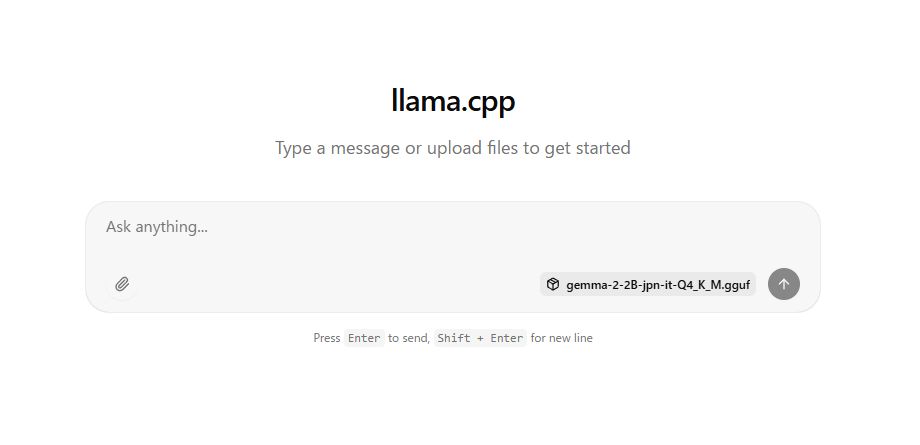
You can drag and drop image files onto the shown page.
Troubleshooting
An AMD bug report appeared and the system crashed when I inputted an image.
I resolved the issue by doing the following two things (though I am not sure which one was the actual cause):
1. Updated the driver from the following page:

2. Launch AMD Software (Adrenalin Edition) and change “Memory Optimizer” under the “Performance” → “Tuning” tab to “Gaming”. (This increased the dedicated GPU memory from 2GB to 4GB.)
Reference
コメント