
The purpose
Running a local LLM (Chat AI) using llama.cpp.
In this article, we will use Gemma, Google’s model designed for local environments.
It can be run on AMD GPUs as well as in environments without a GPU (CPU-only).
Build environment
llama.cpp
Download the zip file that matches your environment from the page below.
If you want to run it on Windows with an AMD GPU (or without a GPU), it will work with the package for Vulkan.
If you are using an Nvidia GPU, it will work with the package for CUDA.
If it does not work with the versions above, use the package for CPU.
Once you extract the downloaded file into the folder of your choice, the preparation is complete.
Model
Please download a model from one of the following pages.
gemma-2-2b-jpn is a model specifically optimized for Japanese.
gemma-2-9b is a smarter model than gemma-2-2b-jpn.
On the linked page, you will see files labeled with terms like “Q4” or “Q8.” The higher the number after the “Q,” the smarter the model is.
Generally, smarter models have larger file sizes and take longer to generate responses.
(There is also an even smarter model called Gemma-2-27B.)
Please choose a model that fits your environment. (As a general rule of thumb: 2B is for smartphones and low-spec PCs, 9B is for high-spec PCs, and 27B is for ultra-powerful PCs.)
Execute
Executing via Command Prompt
Execute the following command in the Command Prompt.
Please replace path/to/model with the actual path of the model you downloaded.
llama-cli.exe -m path/to/model
Once the model finishes loading, a screen like the following will be displayed:
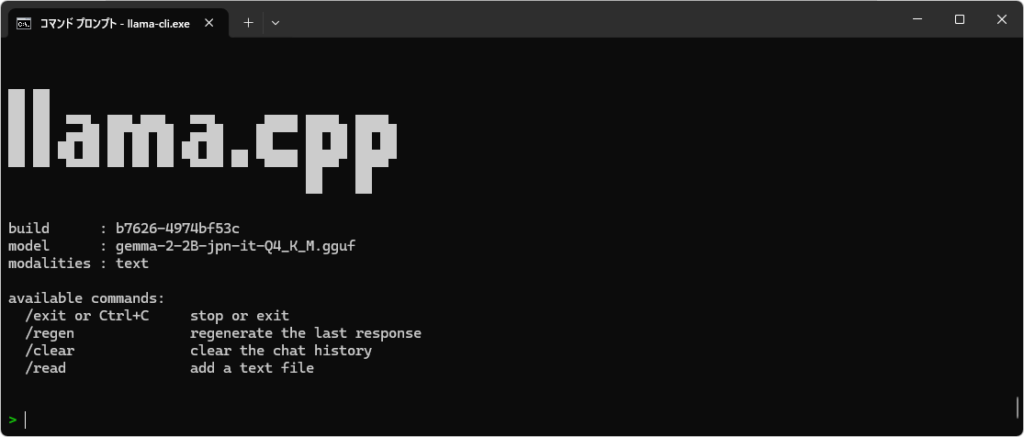
Once the screen above is displayed, you can start chatting. Japanese input is also supported.
When I used gemma-2-2B-jpn-it-Q4_K_M.gguf on my system (Ryzen 7 7735HS with Radeon Graphics + 32GB RAM), the responses came back almost instantly.
Exit
You can exit by typing /exit or pressing Ctrl+C.
Executing as server
Run the following command in the Command Prompt.
Note: Please replace path/to/model with the actual path of the model you downloaded.
llama-server -m path/to/model --port 8080
Once the model has finished loading, you will see a message like this:
main: model loaded
main: server is listening on http://127.0.0.1:8080
main: starting the main loop...
srv  update_slots: all slots are idle
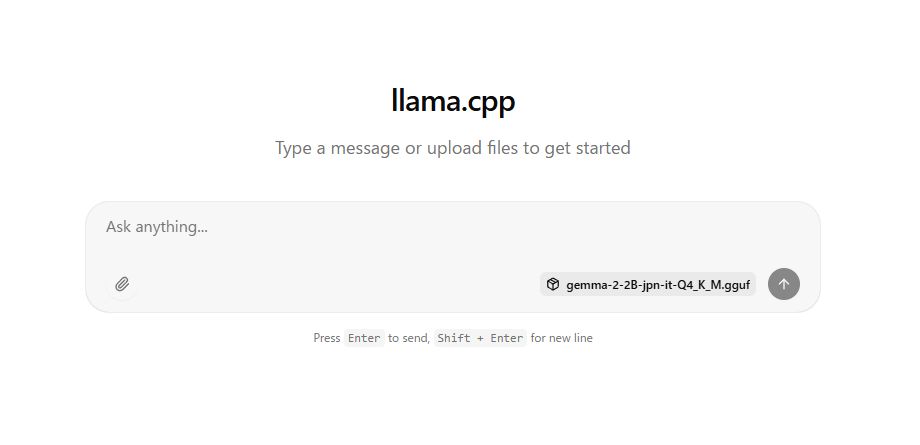
Once you see the message above, open a browser like Chrome and go to http://127.0.0.1:8080/.
The following screen will appear, and you can start chatting.
Gemma, unlike Gemini, does not support image input.
Additionally, it cannot output images.
Exit
You can terminate it by pressing Ctrl+C in the prompt where you started the server.
Accessing from Other Devices (PC or Smartphone)
If you run it using the command above, you will not be able to access it from other devices.
If you want to allow access from other devices, add the following argument when starting it up. (Please note that when accessing it, you will need to find the server-side IP address and replace 127.0.0.1 in

--host 0.0.0.0Please be very careful with security.

コメント